How to make custom animations for Blender without motion capture
Describe a movement in words and get a 3D human animation as an FBX for Blender, Unity or Unreal Engine. No mocap suit, no keyframes. Free.
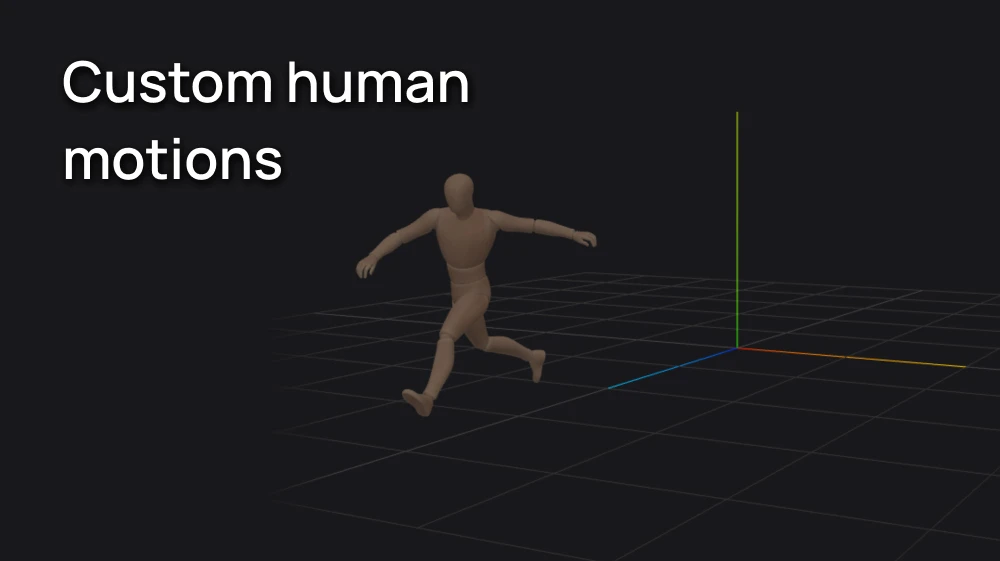
Your character is modeled, rigged and ready. Now it needs to move. A motion capture suit costs thousands, and keyframing a believable run-and-jump by hand takes hours,
With 3D Motion on Artificial Studio you describe the movement in plain words, choose how long it lasts, and download an FBX animation.
Step 1: Describe the motion in 3D Motion
Open our AI tool and write the movement in the Prompt, as if you were directing an actor. For example:
A person is running then takes a big leap.
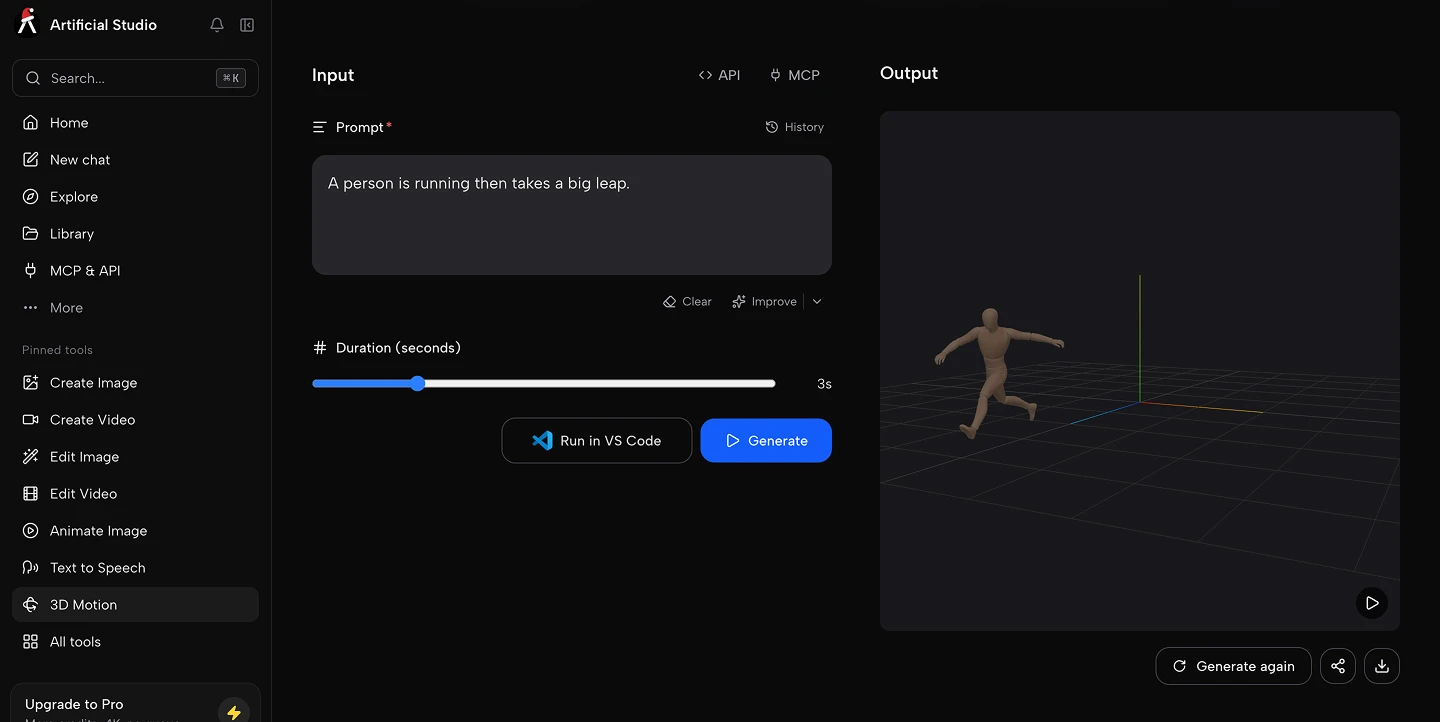
Describe actions in the order they happen and use simple verbs: walk, turn, crouch, wave, jump. One or two actions per animation give the cleanest result.
Step 2: Set the duration
Use the Duration slider to choose how long the animation lasts, from 0.5 to 12 seconds.
💡 Match it to the action: 2 to 3 seconds for a jump or a wave, 5 seconds for a short walk cycle, longer for a sequence of moves.
Step 3: Generate and download the FBX file
Press the blue Generate button. In about a minute you get a 3D preview of a character performing your motion, powered by Hunyuan Motion.
Artificial Studio gives you 20 free credits every day. Each animation costs 16 credits, so you can make 1 custom animation a day completely free.
If the movement isn't quite right, rewrite the prompt with more detail and generate again. When it looks good, download the FBX. It includes a full-body skeleton with fingers and a basic character already skinned to it.
Import it into Blender
- In Blender, go to File → Import → FBX (.fbx) and select the file.
- Press Space to play. You'll see the included character performing the motion.
To put the motion on your own character, you have two options.
If your character isn't rigged yet, use the skeleton that comes in the FBX. No add-ons needed:
- Delete the included character mesh, keeping its armature.
- Select your character's mesh, then Shift-select the armature.
- Press Ctrl+P → With Automatic Weights.
Your character now moves with the animation, and every new motion you generate will work on it too, because they all share the same skeleton.
If your character already has its own rig, you need to retarget the motion from one skeleton to the other. You can do it by hand with Copy Rotation constraints and Bake Action, but with 52 bones it takes a while. The free Rokoko Retargeting add-on does it in a few clicks:
- Set the imported armature as the Source and your character's armature as the Target.
- Click Build Bone List and check that the bones match. The file uses clear names (Pelvis, L_Hip, R_Knee, Spine1, Head), so most map automatically.
- Click Retarget Animation.
Either way, the animation ends up as a regular Action, ready to edit, loop or combine in the NLA editor.
Using it in Unity, Unreal Engine or with Mixamo characters
The FBX isn't Blender-only. It works in the main game engines too:
- Unity: drag the FBX into your project. In the Rig tab, set Animation Type to Humanoid and click Configure to check the bone mapping (Pelvis goes to Hips). The clip can then play on any Humanoid character.
- Unreal Engine: import the FBX as a skeletal mesh with its animation. Then use an IK Retargeter to transfer the motion to your character's skeleton, such as the UE mannequin or a MetaHuman.
- Mixamo characters: Mixamo only offers the animations in its own library, and you can't upload new ones. But you can import a Mixamo character into Blender and retarget your custom motion onto it, as in the previous section. You keep Mixamo's free characters and get any move you can describe.
8 animation prompts to try
| Use | Prompt | Duration |
|---|---|---|
| Game idle | A person stands still, breathing calmly and shifting weight from one foot to the other | 4 s |
| Game locomotion | A person jogs forward at a steady pace | 3 s |
| Platformer | A person is running then takes a big leap | 3 s |
| Combat | A person throws a right punch, then a left kick | 2.5 s |
| Cutscene | A person walks forward, stops, and looks around nervously | 6 s |
| Character greeting | A person waves hello with the right hand | 2 s |
| Celebration | A person jumps with both arms raised in victory | 2.5 s |
| Architectural render | A person walks slowly across the room and sits on a chair | 7 s |
Do it from Claude
Building a game and need a full set of animations? Ask Claude to make them with the Artificial Studio MCP:
Make the basic animation set for my platformer character with 3D Motion: idle (4 s), walk (3 s), run (3 s), jump (2 s), fall (2 s) and a victory pose (2.5 s).
Claude writes a prompt for each one, generates all six and gives you the FBX links.
To connect it:
- Claude (web or desktop): go to Settings → Connectors → Add custom connector and paste https://api.artificialstudio.ai/mcp.
- Claude Code: run claude mcp add --transport http artificial-studio https://api.artificialstudio.ai/mcp.
Need a full animation set? With $9 you get 1,300 credits, enough for 81 animations. That's about 11 cents each, a fraction of a mocap session.
Your free credits reset tomorrow either way!