A Midjourney --sref alternative that works across image and video models
Save a visual style from 4 of your own images and reuse it in GPT Image, Nano Banana, Seedream, Veo and more. A Midjourney --sref alternative for brands.
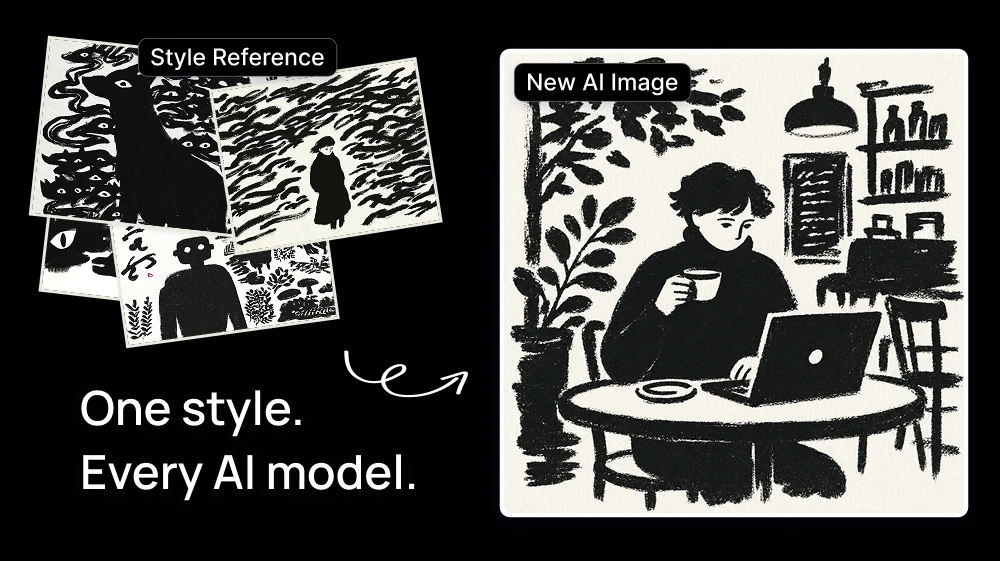
Midjourney's --sref is great for finding a look, but a code you found online isn't your client's brand. And you can't make a video with it.
If you're an agency or a designer, what you actually need is to keep making assets that look like your client. On Artificial Studio you save that style once from 4 of your own images and reuse it across 15 image and video models, including GPT Image 2.5, Nano Banana Pro, Seedream 4.5 and Seedance 2.5.
Step 1: Save your style in Concepts
Open Concepts from the left menu. You can also save one style directly from References in Create Image or Create Video.
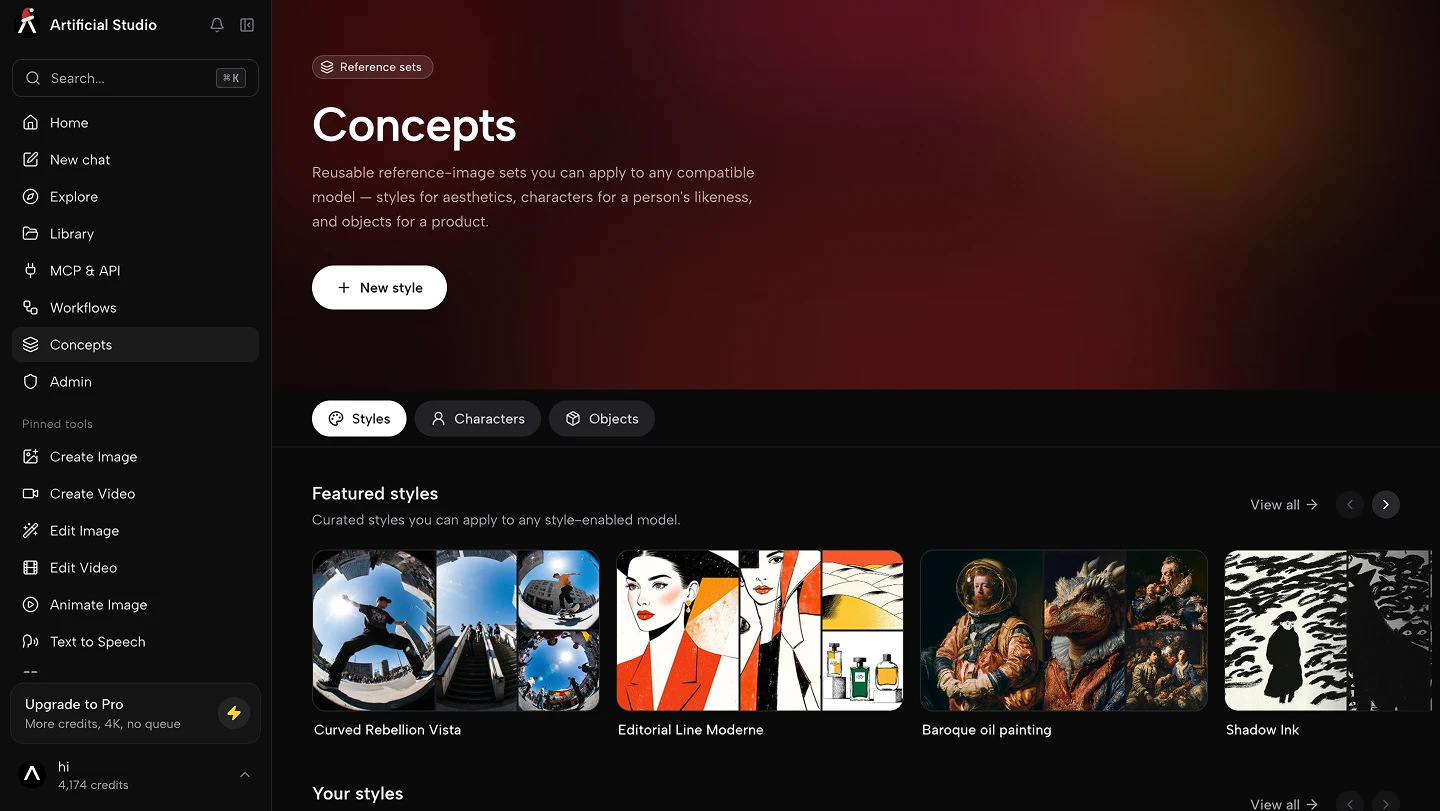
Choose what you want to save:
- Style: a visual look, like your client's illustration style or a photography mood.
- Character: a person or mascot that has to look the same in every image.
- Object: a product, a logo or any item you need to repeat.
Upload at least 4 images and give it a name. Four is enough; more rarely makes a difference. For a character or an object, use images from different angles, and for a character, with different expressions.
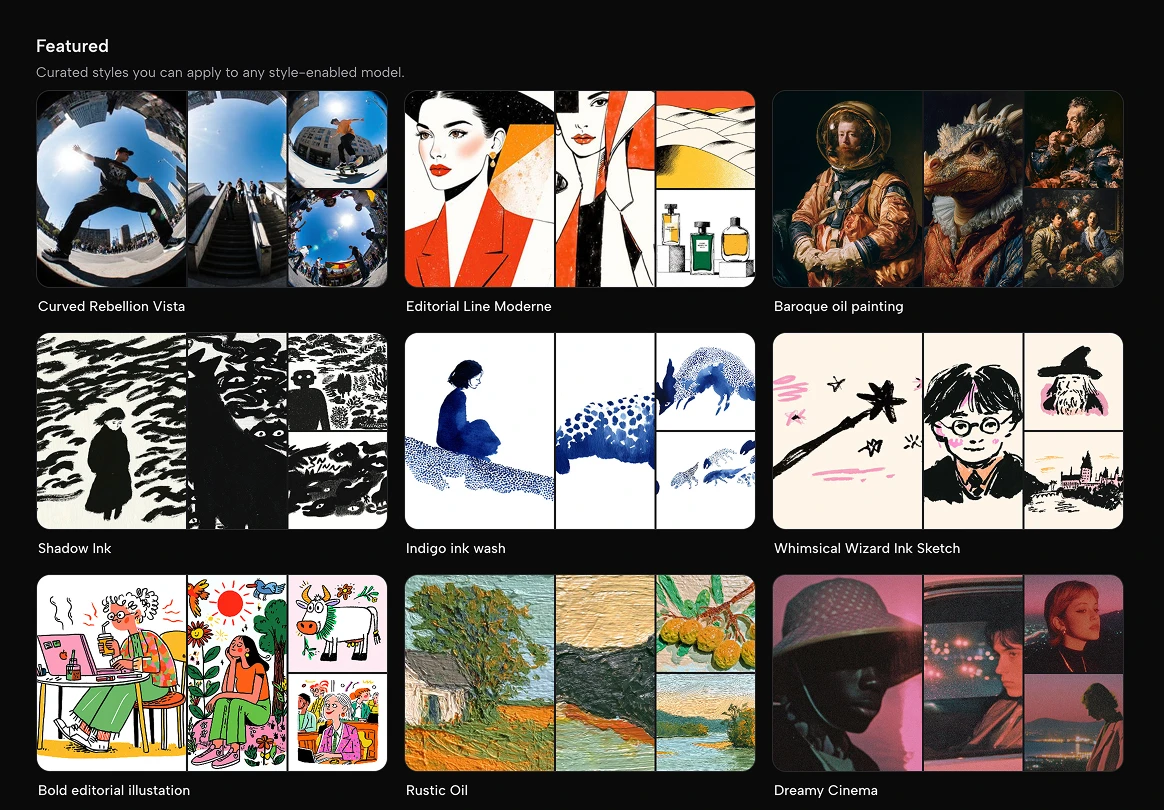
Just want to play first? The Concepts library has ready-made featured styles to try, from bold editorial illustration and ink to analog photo and 80s anime.
Step 2: Apply it in Create Image
Open Create Image and choose a model that supports References, like GPT Image 2, GPT Image 2.5, GPT Image 2.5 Sunburst, Nano Banana, Nano Banana 2, Nano Banana Pro, Seedream 4.0 or Seedream 4.5.
In References, click Style and pick the one you saved. Then write what you want in the Prompt. It can be as short as "make a dog": the style does the rest.
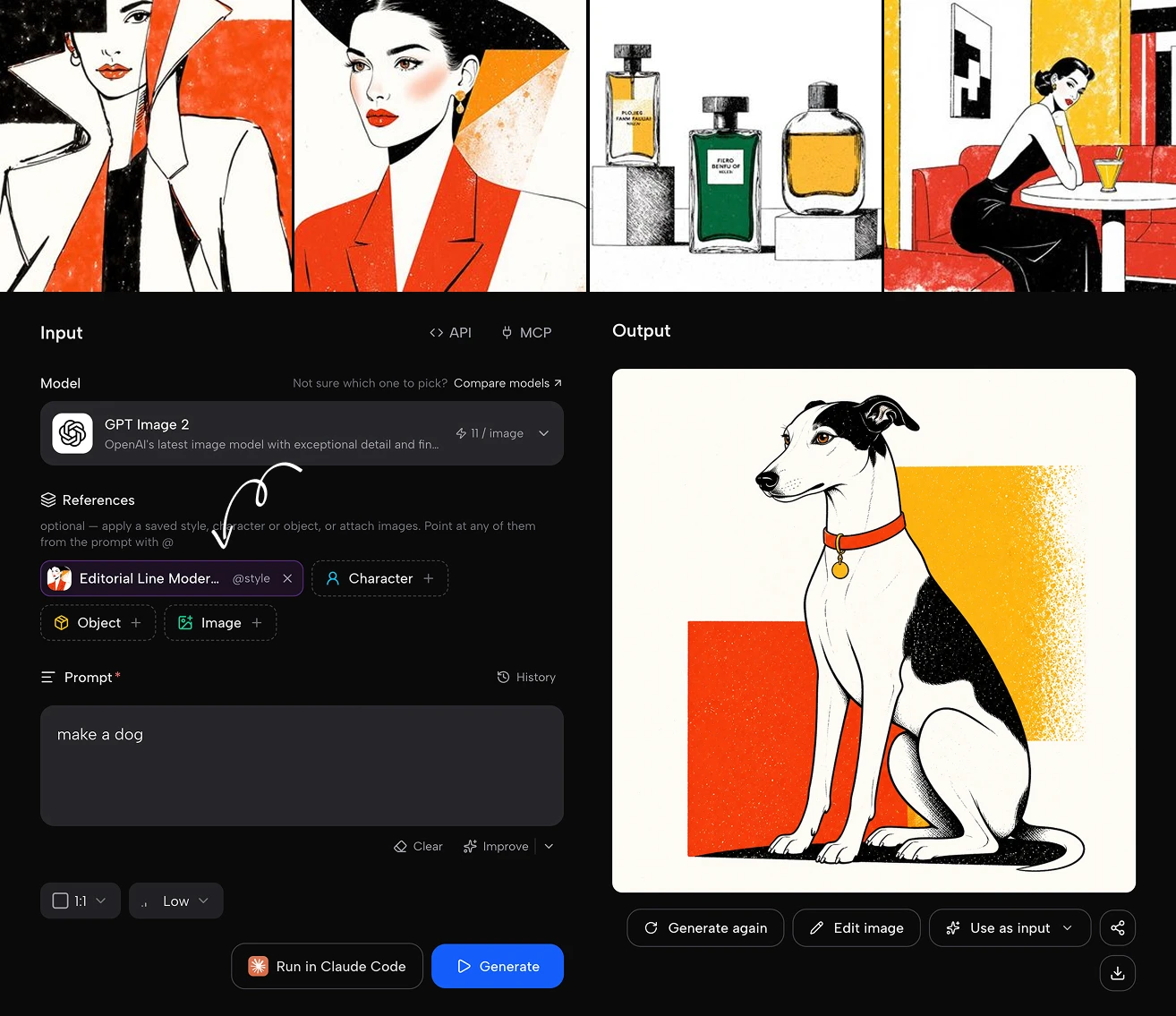
Want more control? Type @ in the prompt to point at a reference in a specific part of the scene. For example: "@chef holding @sauce-bottle in a busy kitchen". You can mix a style, a character and an object in the same image.
💡 Need something quick without saving anything? Click Image in References and attach loose reference images instead.
Step 3: Generate
Press the blue Generate button. In seconds you get an image in your saved style, ready to download.
Not quite right? Change the model and generate again. The style stays applied, so you can compare how GPT Image, Nano Banana and Seedream interpret the same look and keep the best one.
Use the same style in video! 📽️
This is where an --sref code can't follow you. Open Create Video, add the same Style, Character or Object in References, and write your prompt.
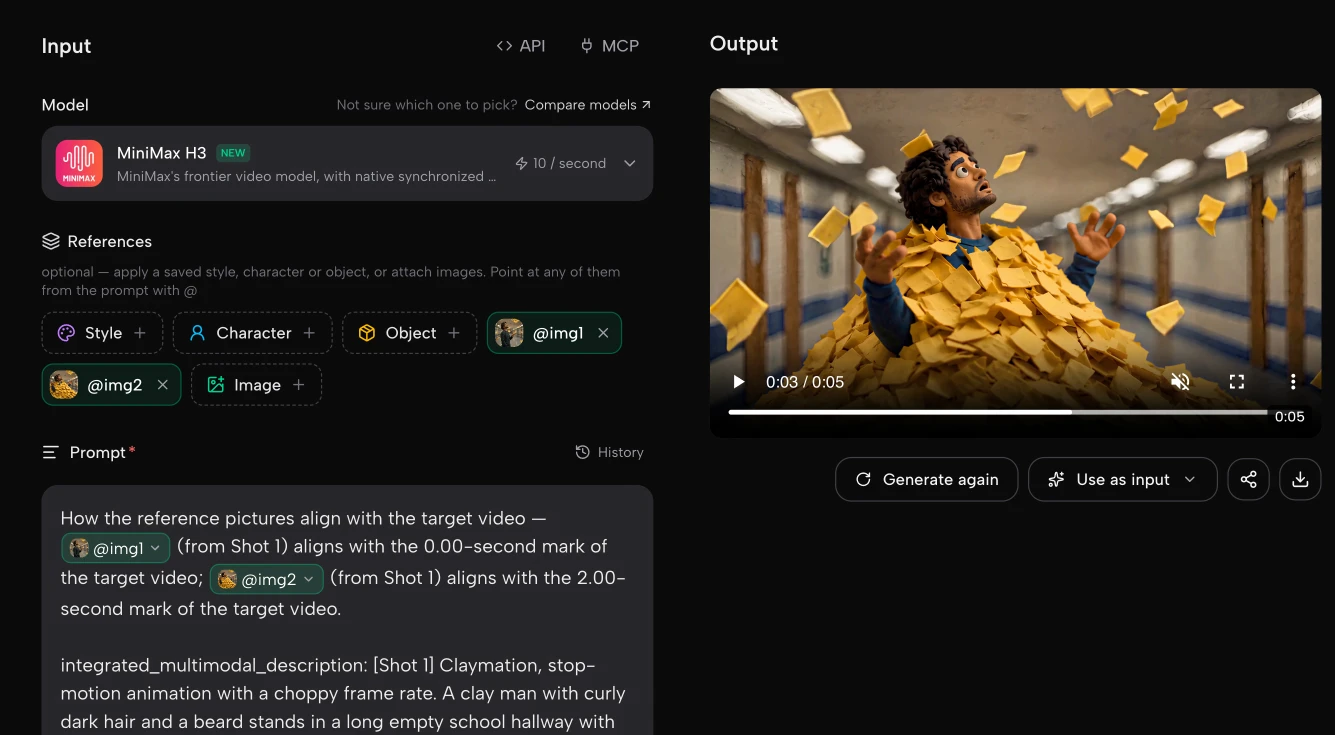
It works with Google Veo 3.1, Vidu Q3, Happy Horse 1.1, MiniMax H3, MiniMax H3 Max, Seedance 2.0 Fast and Seedance 2.5. So the mascot in your client's Instagram post can star in their 15-second ad, and both look like the same brand.
Example: one client, one style, three formats
Say your agency runs the account for a coffee shop called Sunday Roast. Their brand uses a flat, warm illustration style with a cartoon coffee cup mascot.
The style: save 4 illustrations from their past campaigns in Concepts as a Style called Sunday Roast. Save 4 drawings of the mascot from different angles as a Character called cuppy.
- Instagram post (Create Image, GPT Image 2.5):
@cuppy holding a pumpkin spice latte in a cozy autumn café, with the text "Fall is brewing"
- Poster for the shop window (Create Image, Nano Banana Pro):
Vertical poster: @cuppy waving next to a stack of pastries, big title "2x1 croissants every Monday"
- 10-second ad (Create Video, Google Veo 3.1):
@cuppy jumps out of a steaming mug, winks at the camera and pours latte art in the shape of a heart
Three models, three formats, one brand. And next month, when the client asks for the Christmas campaign, the style is already there.
Why not just use --sref?
--sref is a fast way to borrow a look. A saved Style is a way to keep one.
| Midjourney --sref | Artificial Studio Concepts | |
|---|---|---|
| Where the style comes from | A code or a reference image | Your own images (4 minimum) |
| What you can save | A style | A style, a character or an object |
| Models it works with | Midjourney only | 8 image models and 7 video models |
| Between model versions | Older codes don't always render the same | Built from your images, so you can re-apply it to newer models |
| Point at it in the prompt | No | Yes, with @ |
| Use it from Claude | No | Yes, through the MCP |
For your team: anyone who saves the same images in their own Artificial Studio account gets the same concept, so everyone can produce on-brand assets for that client.
Do it from Claude
Your saved concepts also work through the Artificial Studio MCP. That means you can produce a whole batch for a client just by asking Claude:
Using the sunday-style style and the cuppy character, make 10 Instagram posts for Sunday Roast's December calendar: one for each weekly offer, two for Christmas and one for New Year's Eve.
Claude writes each prompt, generates the images with your saved concepts and gives you the links.
To connect it:
- Claude (web or desktop): go to Settings → Connectors → Add custom connector and paste https://api.artificialstudio.ai/mcp.
- Claude Code: run claude mcp add --transport http artificial-studio https://api.artificialstudio.ai/mcp.
The first time you use it, a window opens to sign in to Artificial Studio. No API key needed.
This process is FREE
The free plan includes 1 custom concept, and using a saved style never adds to the cost of a generation. You pay the same credits as without it.
Artificial Studio gives you 20 free credits every day. An image with GPT Image 2 costs 11 credits, so you can make 1 image in your own style every day for free.
Working with several clients? Pro gives you unlimited saved styles, characters and objects.
Your free credits reset tomorrow either way!