How to recolor images to your brand colors without Photoshop
Recolor any image to your client's brand palette in seconds. Pick a preset, enter your colors or extract them from an image, and AI does the rest. Free.
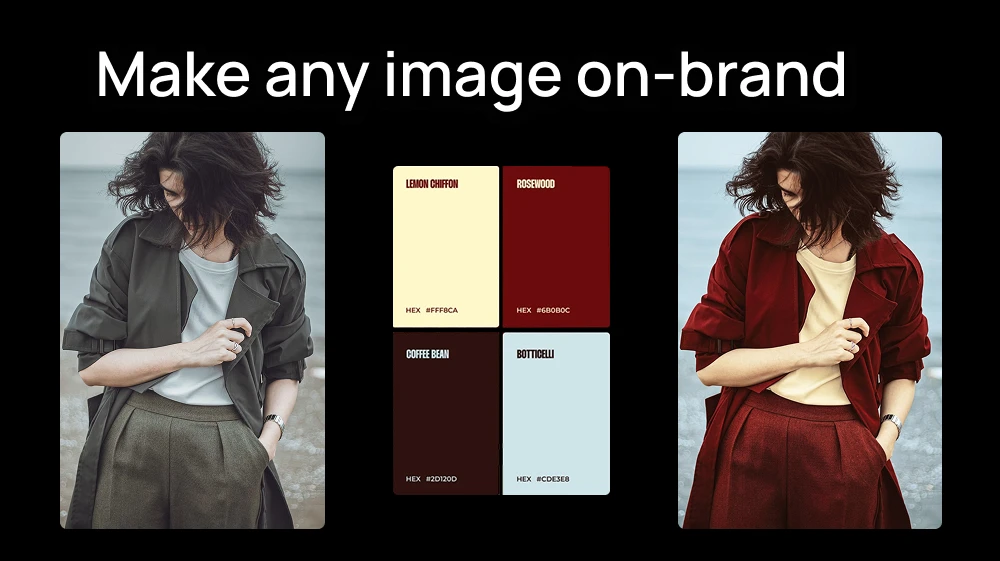
You found the perfect image for the campaign, but it’s not in your client’s brand colors. Fixing it in Photoshop means a week of messing with hue, saturation and masks.
With Color Palette on Artificial Studio you upload the image, pick your client's palette, and AI recolors it to match while keeping everything else intact.
Step 1: Upload your image in Color Palette
Open our AI tool and upload the image you want to recolor. It can be a stock photo, an illustration, a product shot or an AI-generated image that came out in the wrong colors.
Step 2: Choose your palette
You have three ways to set the colors:
- Pick a preset: the tool comes with ready-made palettes to try different looks in one click.
- Enter your brand colors: edit the palette by hand with your client's exact colors from their brand guide.
- Extract it from an image: upload a reference, like the client's logo, website screenshot or a past campaign, and the tool pulls the palette from it.
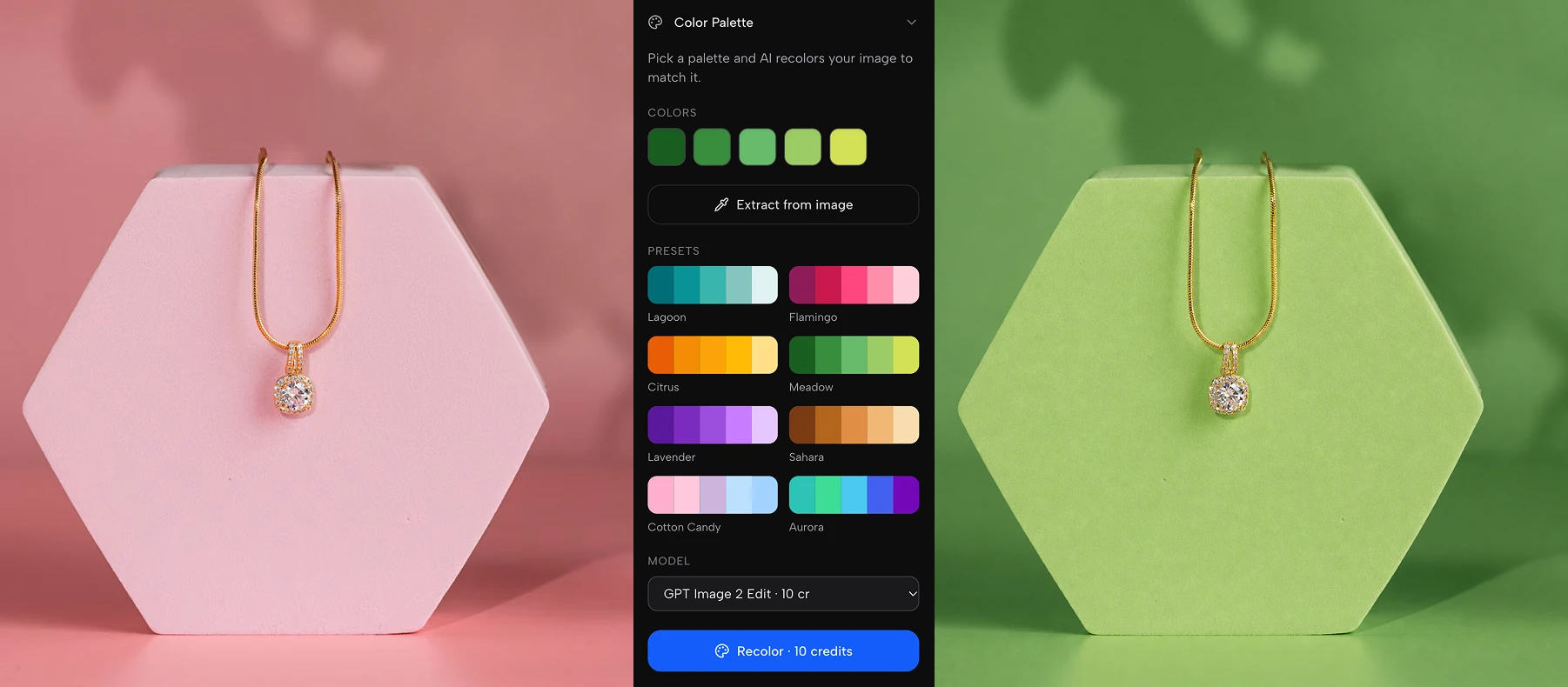
The third option is the fastest when you don't have the brand guide at hand: any on-brand asset becomes your palette.
Step 3: Choose the model and generate
The tool uses Nano Banana 2 Edit by default. We recommend switching to GPT Image 2 Edit: it follows palettes very well and costs less.
This process is FREE. Artificial Studio gives you 20 free credits every day. With GPT Image 2 Edit each recolor costs 10 credits, so you can recolor 2 images a day completely free.
Press the blue Generate button. In seconds you get the same image in your brand colors: same composition, same subject, new palette. Check that the main colors match. If one tone is off, adjust the palette and generate again. Then download it, ready for the campaign.
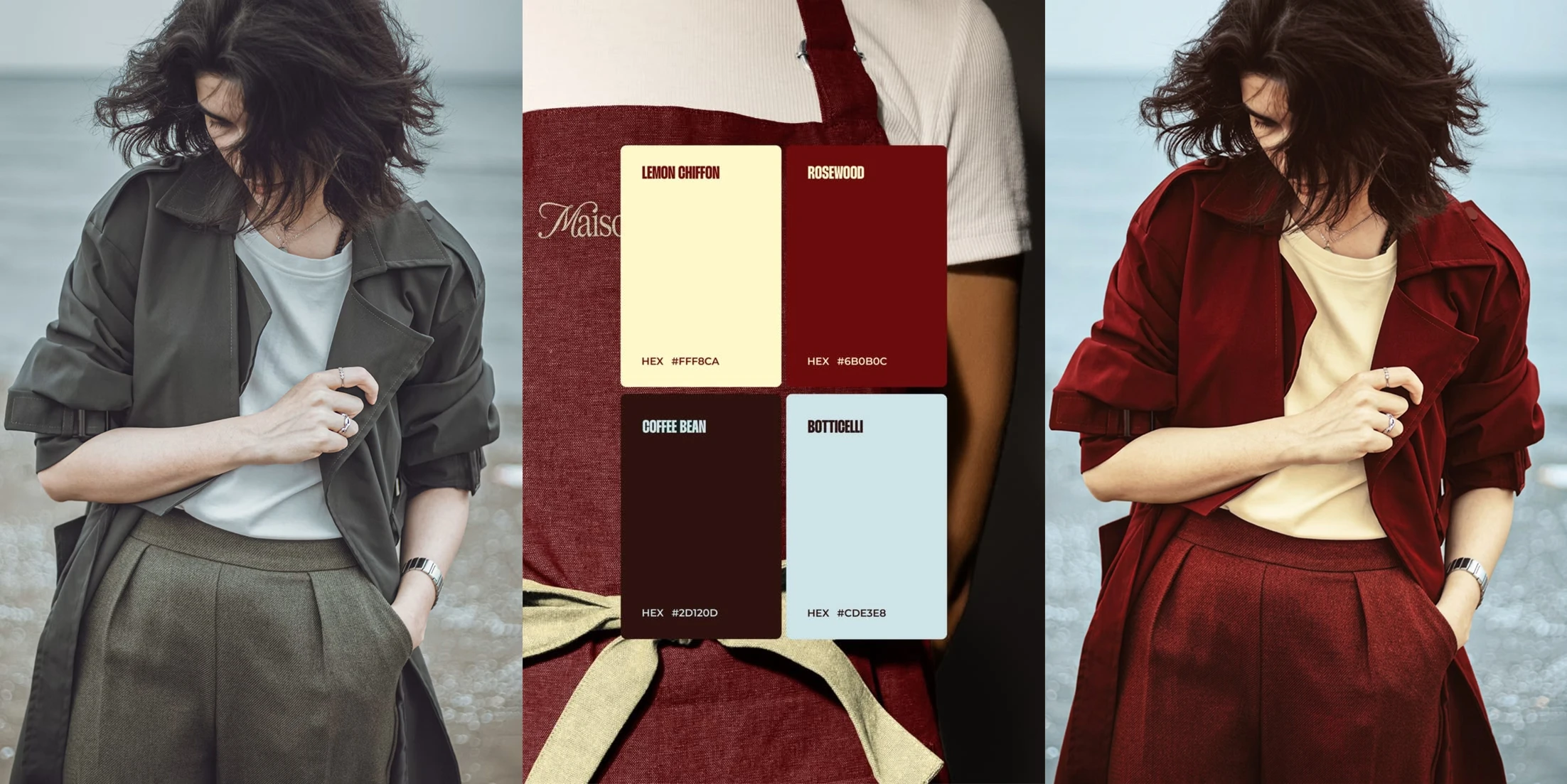
It's built for designers, freelancers and agencies who need every asset to look on-brand!
5 ways agencies and freelancers use it
- Stock photos: turn a generic stock image into one that feels made for the brand.
- One visual, many clients: reuse a concept you love across accounts, each in its own palette.
- Seasonal campaigns: shift the brand's everyday palette into a Christmas or summer version without starting over.
- Mismatched AI images: fix generations that came out right but in the wrong colors, instead of regenerating them.
- Pitch decks: show a prospect how a moodboard looks in their own colors before you win the account.
💡 Need the same consistency for an illustration style, a mascot or a product? Save it as a Concept and reuse it in any image or video. We explain how in A Midjourney --sref alternative that works across image and video models.
Do it from Claude
Recoloring a whole campaign? Ask Claude to do it with the Artificial Studio MCP:
Recolor these 8 campaign images to the client's palette: navy #1B2A4A, coral #FF6F59, cream #F7F1E3 and mustard #E3B23C. Use GPT Image 2 Edit and keep everything else the same.
Claude runs each image with the same palette and gives you the links, so the whole campaign stays consistent.
To connect it:
- Claude (web or desktop): go to Settings → Connectors → Add custom connector and paste https://api.artificialstudio.ai/mcp.
- Claude Code: run claude mcp add --transport http artificial-studio https://api.artificialstudio.ai/mcp.
Need to recolor a full campaign? With $9 you get 1,300 credits, enough for 130 images. Your free credits reset tomorrow either way!