How to vectorize a logo for free without Illustrator
Vectorize a client's logo for free with AI, no Illustrator needed. Convert a blurry JPG into a clean SVG, or rebuild the logo from a description, in seconds.
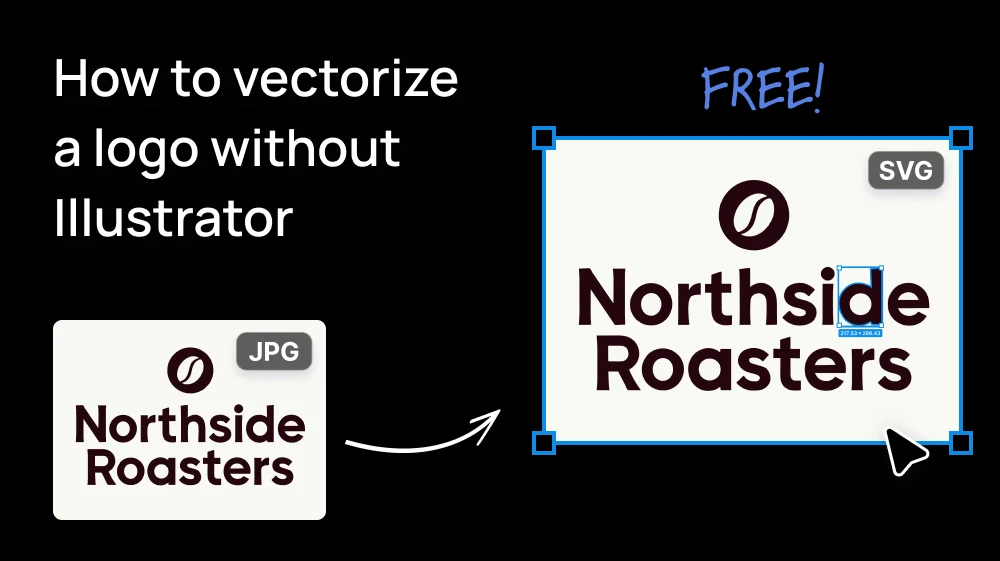
A client sends their logo as a 300px JPG taken from their Instagram profile, or a screenshot of a screenshot, and asks you to put it on a banner. You need a vector file.
The usual answer is opening Illustrator and either running Image Trace and cleaning up the mess, or redrawing the whole thing with the pen tool. There's a faster way that doesn't need Illustrator at all. You can upload the image and get an SVG back in a few seconds with AI, or if the file is too bad to use, describe the logo and generate it as a vector from scratch.
Option 1: Convert the client's image into an SVG here
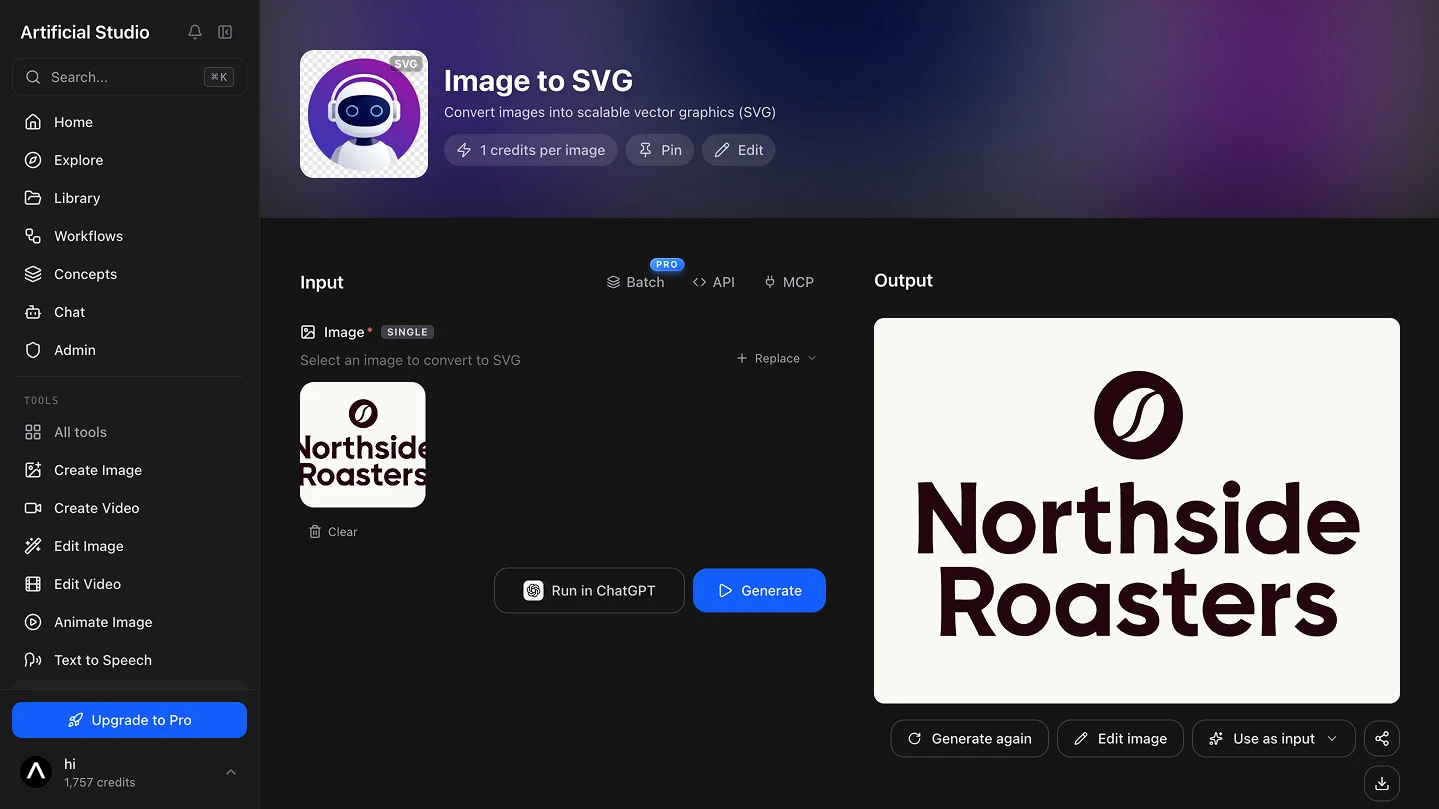
Open the Image to SVG tool and upload the logo. Click the upload area to pick it from your computer, or just paste it with Ctrl+V.
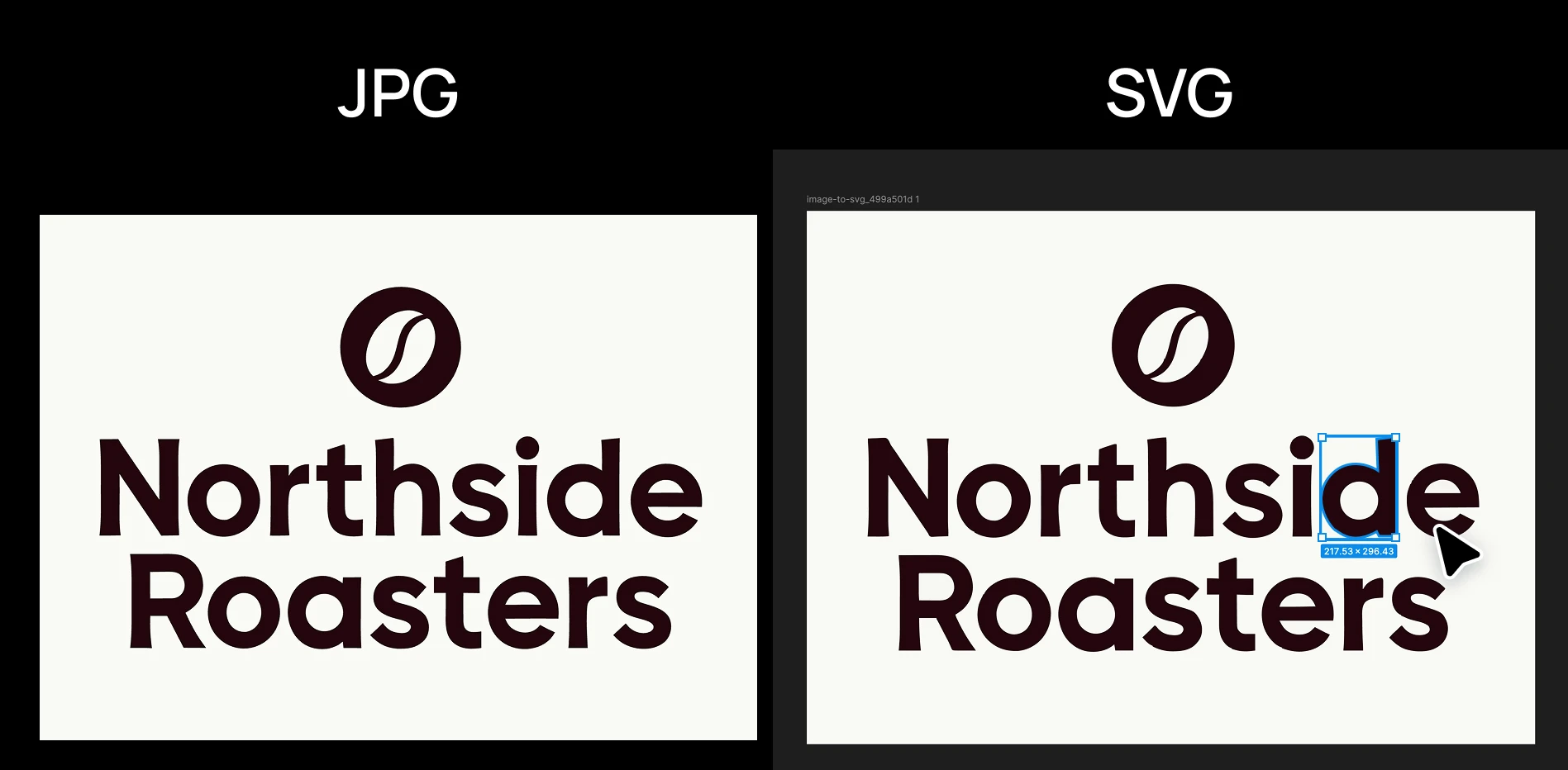
Hit Generate and the tool traces the image into vector paths in a couple of seconds. You can then download it and send it to your client or open in any design software.
💡 Image to SVG works best with flat colors and clean edges. If your client's file is blurry or tiny, run it through Upscale Image or Remove Blur first. A sharper source gives you cleaner curves and fewer stray points (so you don't need to edit later).
If you have a lot of logos to convert, for example a sponsors' wall or a list of partner brands, the PRO plan has a Batch option so you can upload them all at once.
Option 2: Rebuild the logo from a description here
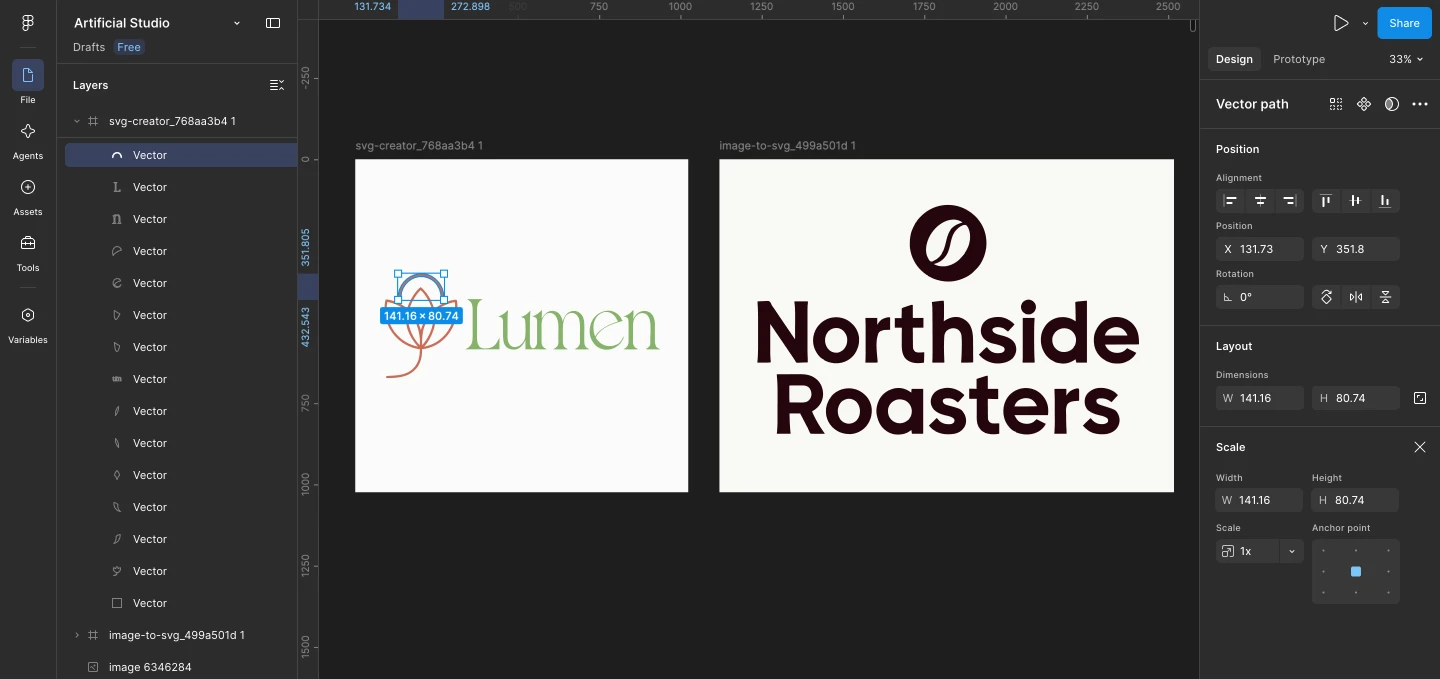
Sometimes the image is too damaged to trace, or the client only has a sketch on paper. In that case you can recreate it with Text to SVG. Write what the logo looks like in plain English: the shapes, the text, the colors and the style. For example:
Logo for a yoga studio called "Lumen", a single-line drawing of a lotus flower with a small sun rising behind it, the name in elegant serif next to the icon, soft terracotta and sage green, minimal, flat vector, no gradients.
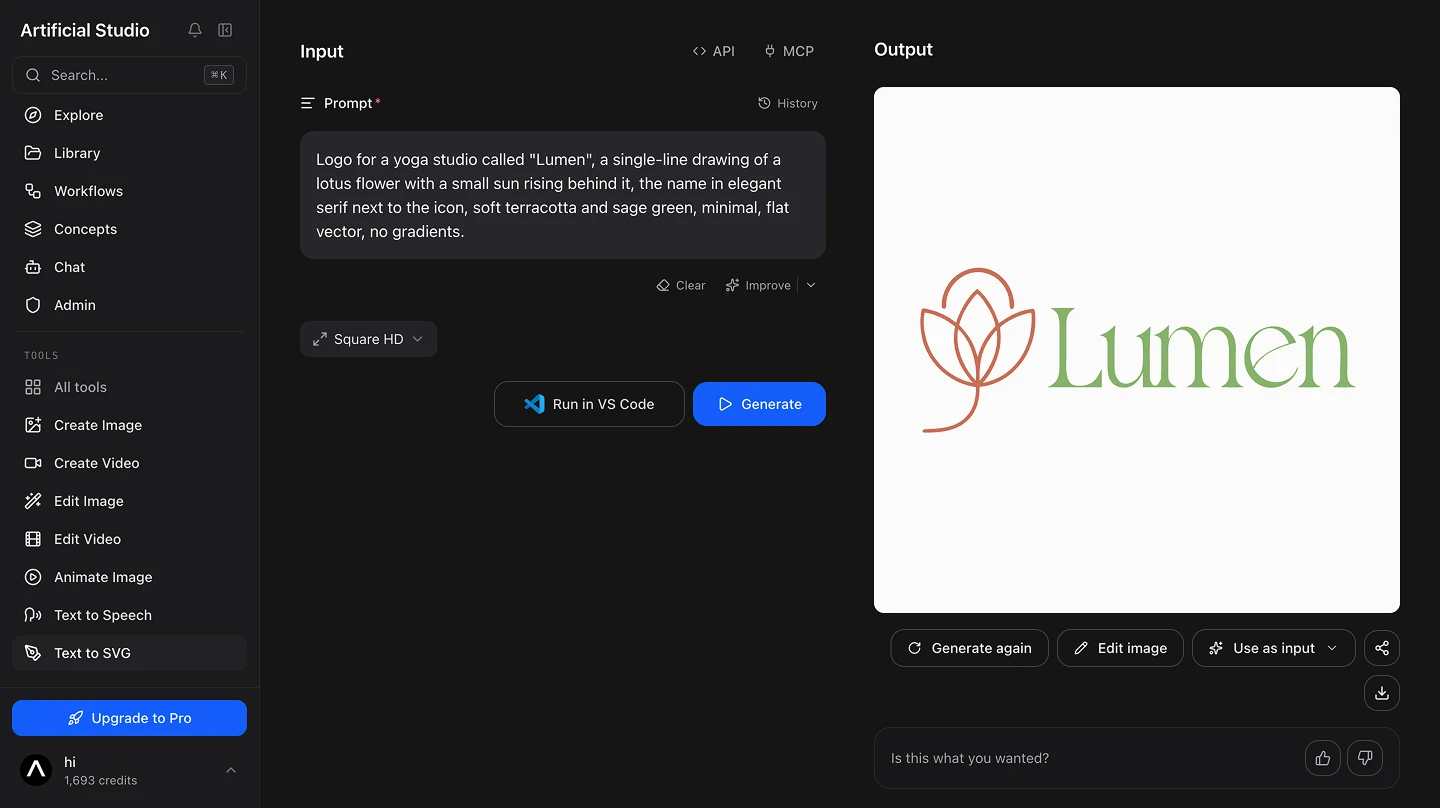
If you're not sure how to write the prompt, the "Improve" button rewrites it with more detail. Generate a few versions and pick the one closest to the original, then fine-tune it in your editor.
Step 3: Check the file and deliver it
Open the SVG in Figma, Inkscape or Illustrator if you have it, and give it a quick look. Since it's a real vector file, you can change colors, move elements, or fix a letter that came out slightly off. Then export it in whatever formats the printer or the client needs: SVG, PDF or EPS.
This process is FREE
Artificial Studio gives you 20 FREE credits every day. Each tool costs 16 credit per image, so you can vectorize 1 logo a day at NO cost, forever, without putting in a card.
Compare that to the usual setup: an Illustrator subscription just to trace a file, or paying someone on a freelance marketplace to redraw a logo that you need by tomorrow.
Doing it without opening the browser at all
Artificial Studio has an MCP server, so both tools are available directly inside Claude, Cursor, ChatGPT, Gemini, n8n and others. Paste the client's logo into the chat you're already in, ask for the SVG, and the file comes back there.
Through n8n you can also wire it into a flow: a client uploads their logo to a shared folder, and the vector version is waiting for you in your project folder before you even open the email.
Take the worst logo file a client has sent you this month, open Image to SVG or Text to SVG, and see what comes back. Your free credits reset tomorrow either way!